Settings
Open Jot and click Settings in the sidebar.
Jot and updates
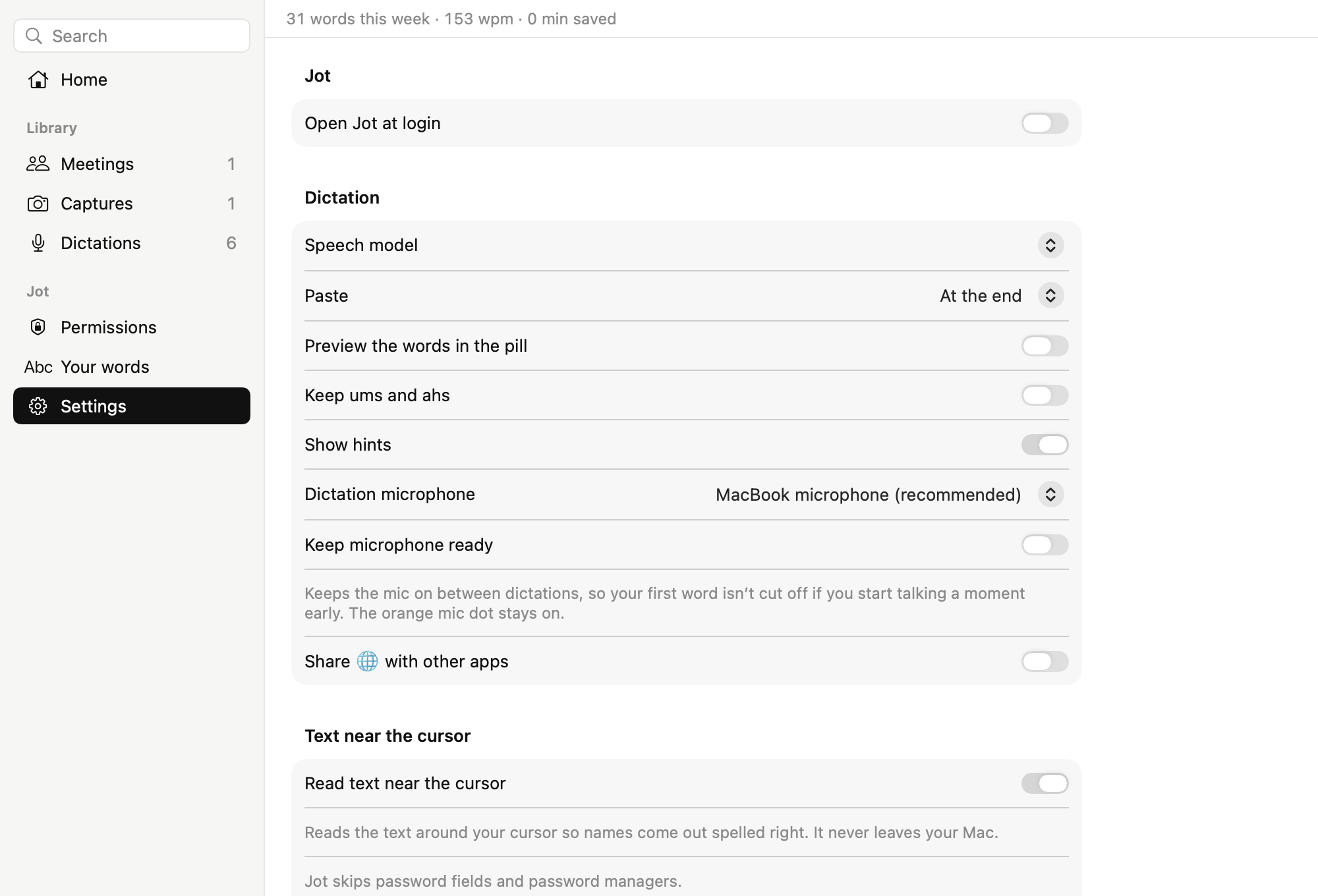
- Open Jot at login opens Jot when you log in.
- Update automatically installs new versions for you. Jot checks GitHub once a day, and sends only its version number. When this setting is off, you’re asked before an update installs.
Meetings and capture
- Suggest recording when a call starts offers to record a call in Zoom, Teams, Slack, FaceTime, or a browser.
- When a capture finishes pastes the capture where your cursor is, or keeps it on a card until you click Paste.
- Paste captures as one picture combines a capture’s screenshots into a single picture.
Dictation
- Speech model chooses the model that turns your speech into text.
- Paste types your words when you finish, or as you talk.
- Preview the words in the pill shows your words as you speak.
- Keep ums and ahs leaves them in the text.
- Show hints shows short reminders under the pill.
- Dictation microphone chooses the microphone.
- Keep microphone ready keeps the microphone on between dictations, so your first word isn’t cut off if you start talking a moment early.
- Share 🌐 with other apps lets another app that uses 🌐 detect it too.
Text near the cursor
Read text near the cursor reads the text around your cursor and in the same window so names are spelled correctly. The text never leaves your Mac. Jot skips password fields and password managers, and you can list apps that Jot should never read.
Recordings
- Folder is where Jot saves new recordings. Click Choose… to pick another folder.
- Keep dictations keeps them indefinitely, or for 7, 30, or 90 days.
- Keep audio saves the sound of each recording next to its words.
If you have an issue
Report a problem… creates a ZIP archive on your desktop that you can send to whoever gave you Jot. It contains the log and details about your Mac, but none of your words.